1.1 安装Rust
1.1.1. 官网安装
去Rust官网,右上角可以设置语言
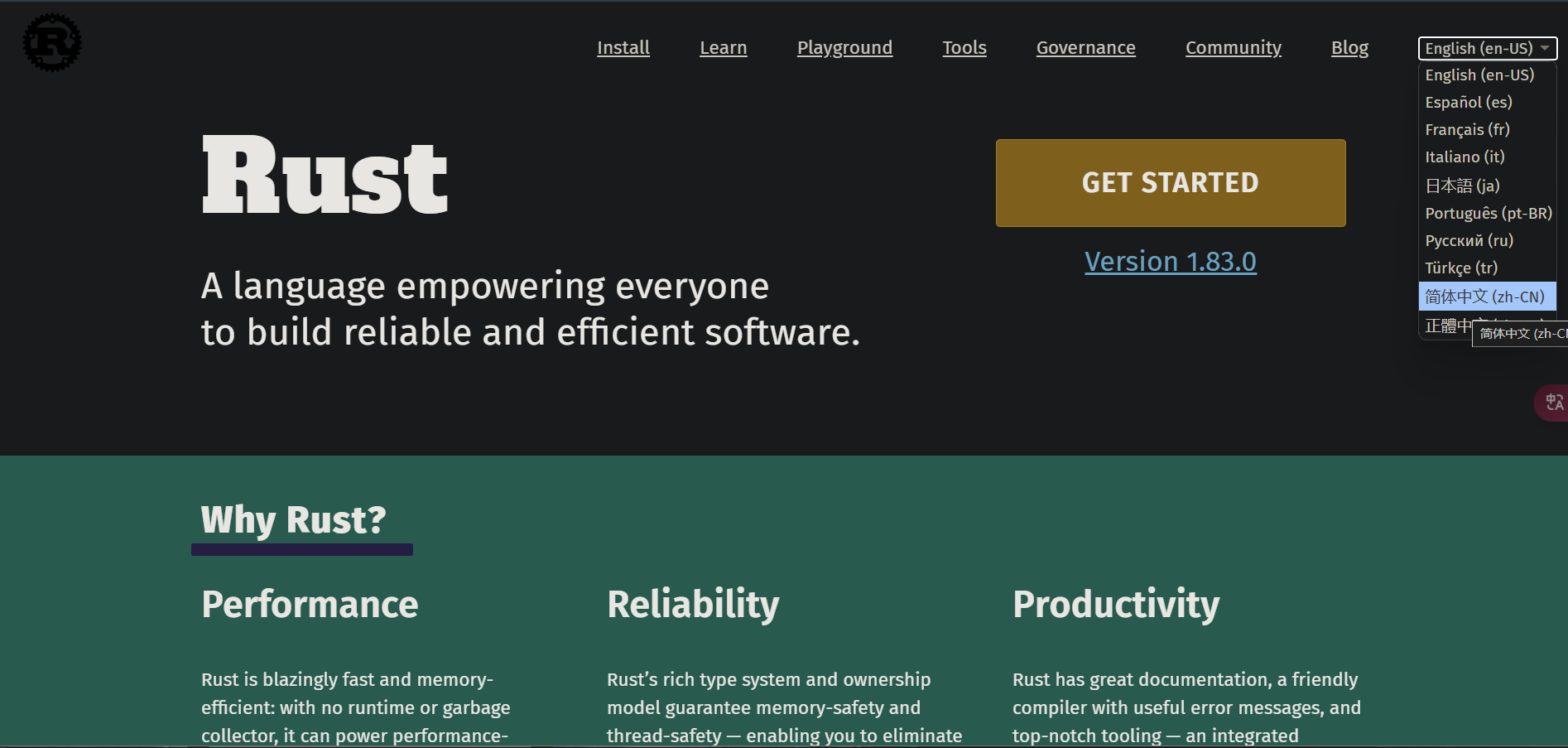 点击“Get Started”,你会看到如下的界面:
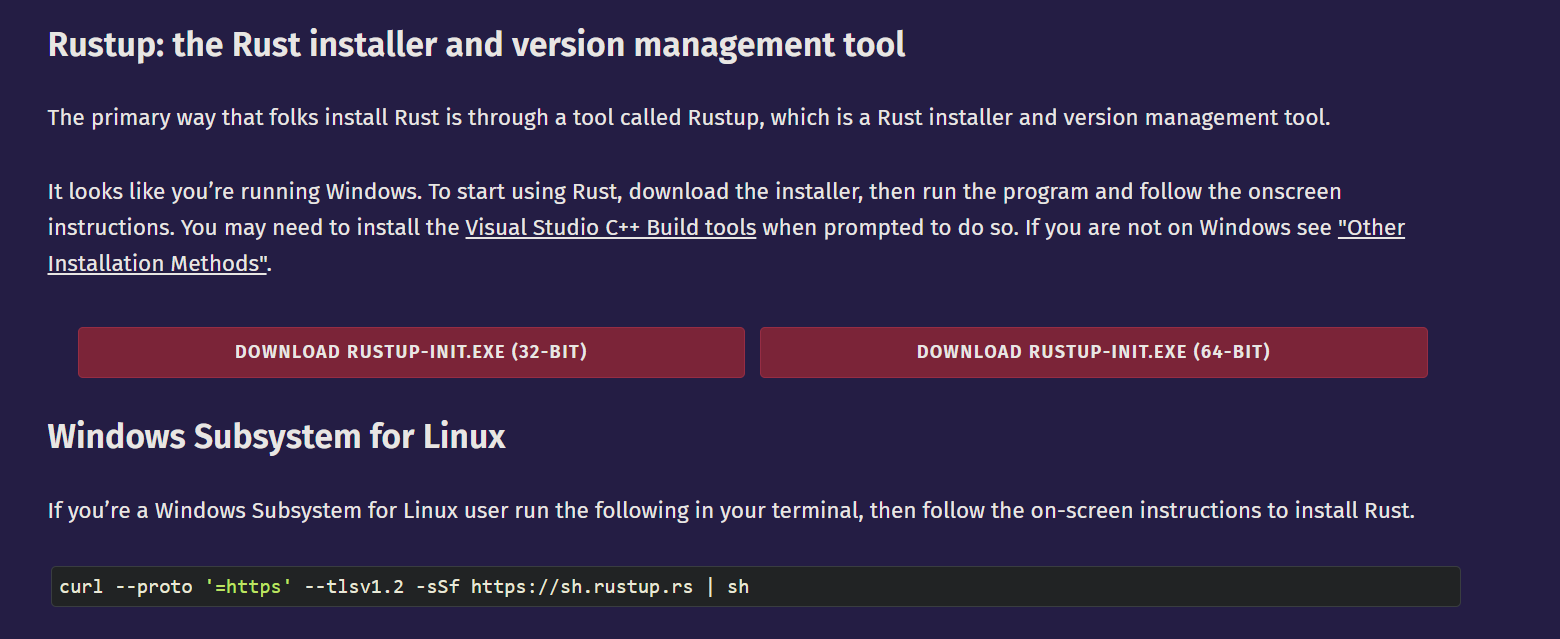 根据自己的系统版本来选择下载:32位下32-BIT,64位下64-BIT。目前大部分电脑都是64位,如果你不知道自己的电脑是64位还是32位,那么只要你的电脑不是老古董,下64位大概率没问题。
如果想要为macOS、Linux,或是Windows的Linux子系统安装Rust,就在终端执行如下命令:
curl --proto '=https' --tlsv1.2 -sSf https://sh.rustup.rs | sh
打开下载好的安装程序,会看到类似如下的菜单:
Current installation options:

   default host triple: x86_64-pc-windows-msvc
     default toolchain: stable (default)
               profile: default
  modify PATH variable: yes

1) Proceed with standard installation (default - just press enter)
2) Customize installation
3) Cancel installation
>
这里有三个选项:
- 选项一(默认选项):标准安装
- 选项二:自定义安装,可以自定义安装路径、安装的组件、安装的工具链版本等
- 选项三:取消安装
对于大多数人来说用选项一即可(先输入1再回车,或是直接回车都可以)
如果你看到类似如下的输出,那么Rust就已经成功安装了:
info: downloading component 'cargo'
info: downloading component 'clippy'
info: downloading component 'rust-docs'
info: downloading component 'rust-std'
info: downloading component 'rustc'
info: downloading component 'rustfmt'
info: installing component 'cargo'
info: installing component 'clippy'
info: installing component 'rust-docs'
info: installing component 'rust-std'
info: installing component 'rustc'
info: installing component 'rustfmt'
info: default toolchain set to 'stable-x86_64-pc-windows-msvc'

  stable-x86_64-pc-windows-msvc installed - rustc 1.96.0 (ac68faa20 2026-05-25)

Rust is installed now. Great!

To get started you may need to restart your current shell.
This would reload its PATH environment variable to include
Cargo's bin directory (%USERPROFILE%\.cargo\bin).

Press the Enter key to continue.
安装程序会提示你需要重启Shell,按下回车键,程序就会退出,Rust也就安装完毕了。
1.1.2. Rust各项命令行操作
Rust的各项命令在Windows环境下可以在Terminal中执行(Win11自带;如果没有,去微软商城搜Windows Terminal下载即可)
-
更新Rust:
rustup updateRust作为新兴的语言,目前的更新非常频繁,建议不时地执行此操作来获得最新版本。 -
卸载Rust:
rustup self uninstall -
安装验证:
rustc --version或是rustc -V结果格式:rustc x.y.z (xxxxxxxxx yyyy-mm-dd)x.y.z表示版本号xxxxxxxxx表示当前版本的哈希值yyyy-mm-dd表示该版本的提交日期
示例:
$ rustc -V rustc 1.96.0 (ac68faa20 2026-05-25) -
打开本地Rust文档手册:
rustup doc
开发工具
- VS Code 安装Rust插件
- VIM
- Helix
- RustRover
- …